What are you trying to do?
Pick a scenario, or scroll — every guide is on this page.
Or just email support.sendu@hilda-ai.com — we reply within 2 business days.
01 · Get connected
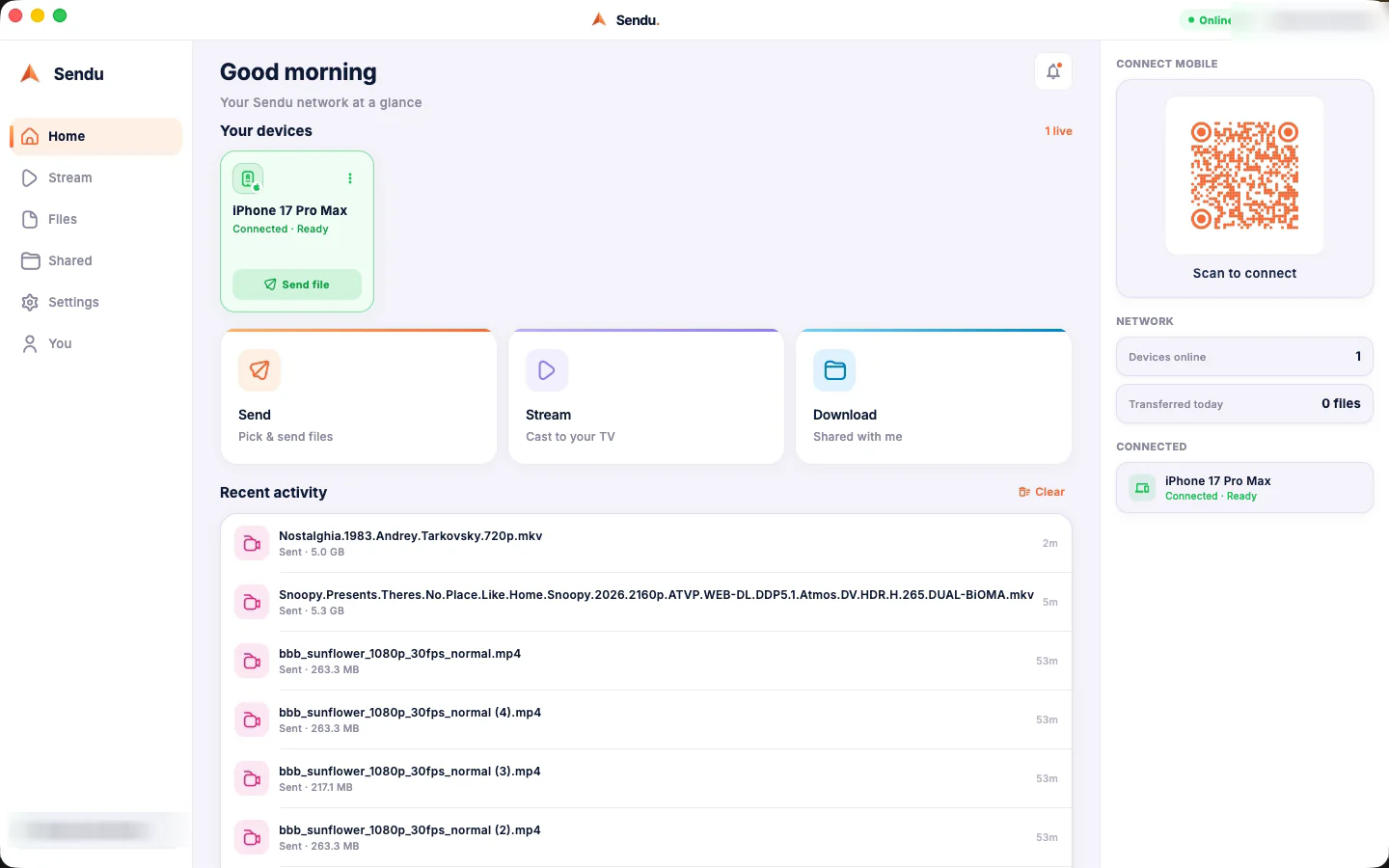
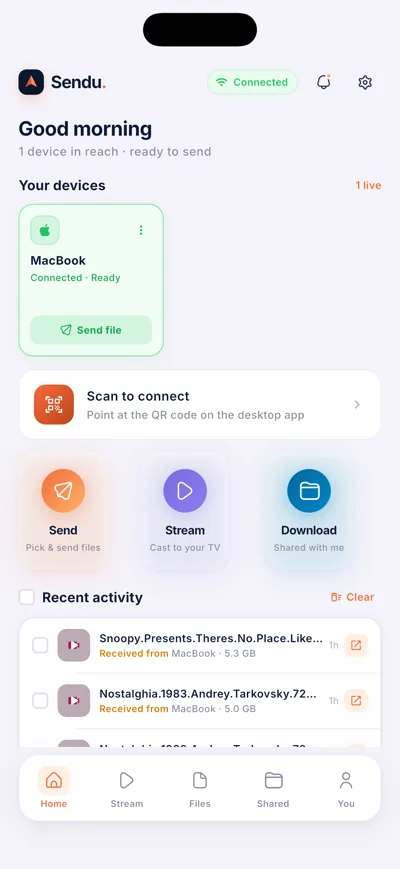
Your devices find each other
Devices on the same Wi-Fi network discover each other automatically. Pair once, and they reconnect on their own every time after that — no account needed.
- Join the same Wi-Fi on both devices — guest networks and mobile data don't count.
- Open Sendu on both. Nearby devices appear on the home screen within seconds.
- Desktop not showing? Scan the QR code on the desktop app with your phone to connect directly.
- Pair when asked — paired devices reconnect automatically from then on.
02 · Send & receive files
Any file, any size, no cloud
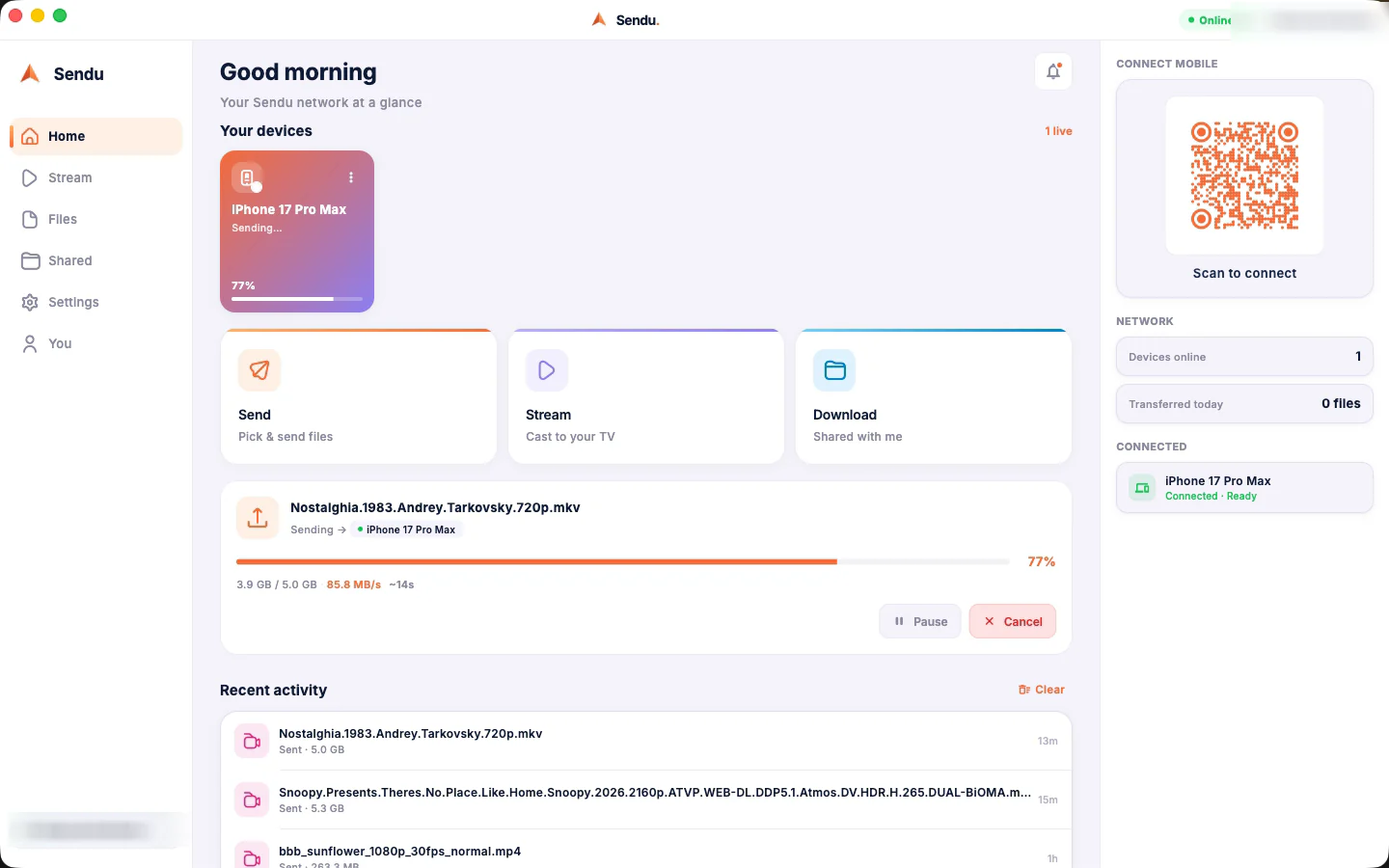
Pick files, choose a device, and the receiver accepts. Transfers travel directly across your network — they never touch a server, and there is no size limit.
- Tap Send and pick one or more files — photos, videos, documents, anything.
- Choose the destination device from your connected devices.
- The receiver taps Accept — every transfer asks for consent first.
- Done. Large files show live speed and remaining time on both ends.
03 · Where are my files?
Every platform has a Sendu folder
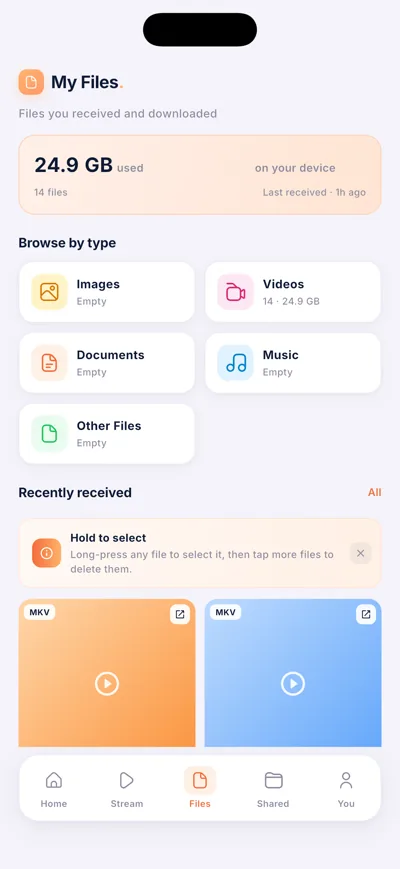
Received files land in a Sendu folder, sorted into category subfolders — Images, Videos, Documents and more.
- Android: any file manager → Download/Sendu.
- iPhone & iPad: Files app → On My iPhone → Sendu.
- macOS: the folder you chose on first receive — Downloads suggested. Windows & Linux: Downloads/Sendu.
- Android TV: the storage volume you picked in Sendu's settings.
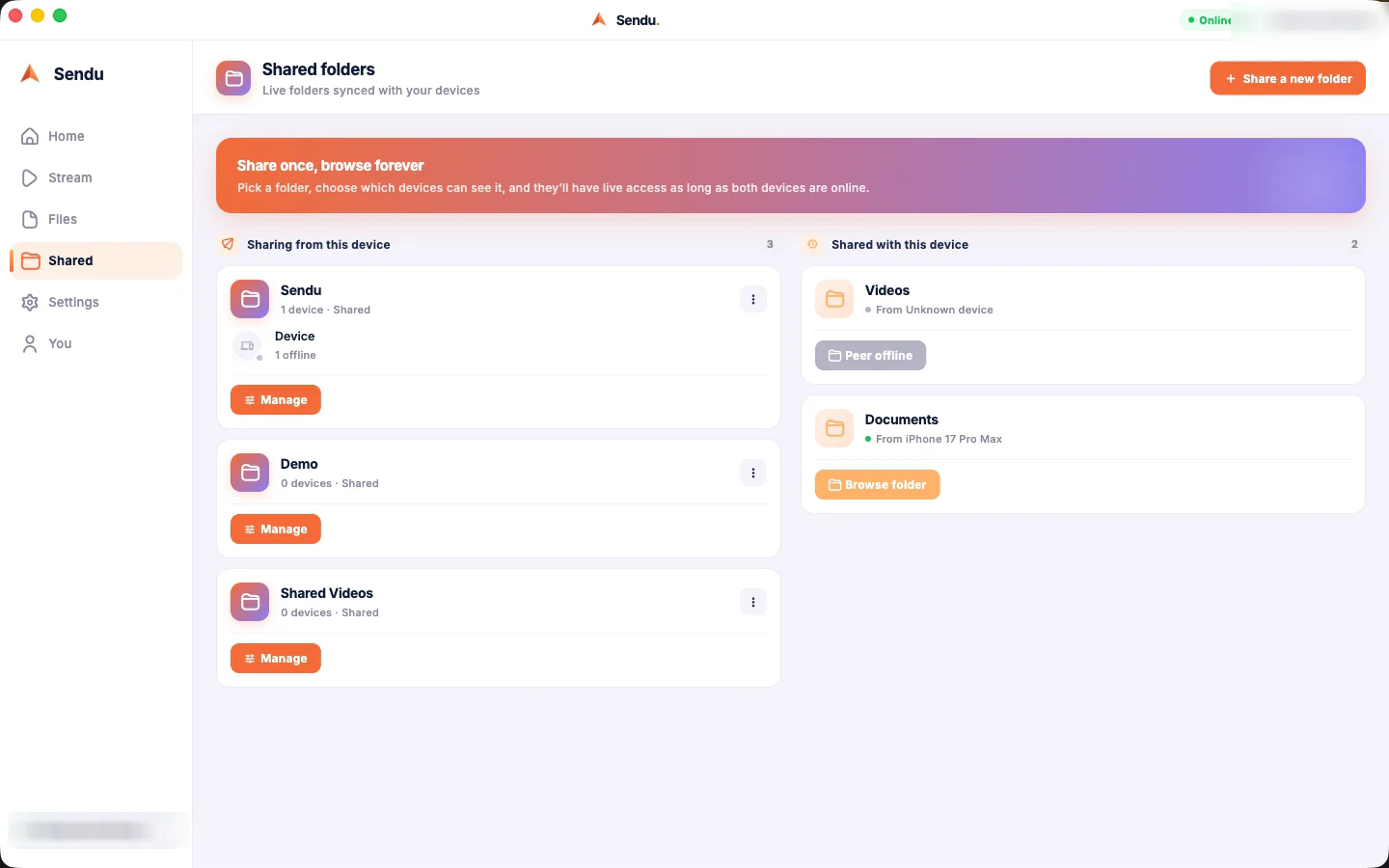
04 · Shared folders
Share a folder, keep control
Share any folder with your paired devices. Others browse it and download files one at a time — your originals never change, and you can stop sharing anytime.
- Open the Shared tab and tap Share a folder.
- Paired devices see it instantly and browse its contents.
- Downloads run one at a time to keep each transfer fast and reliable.
- Stop sharing anytime — access ends immediately.
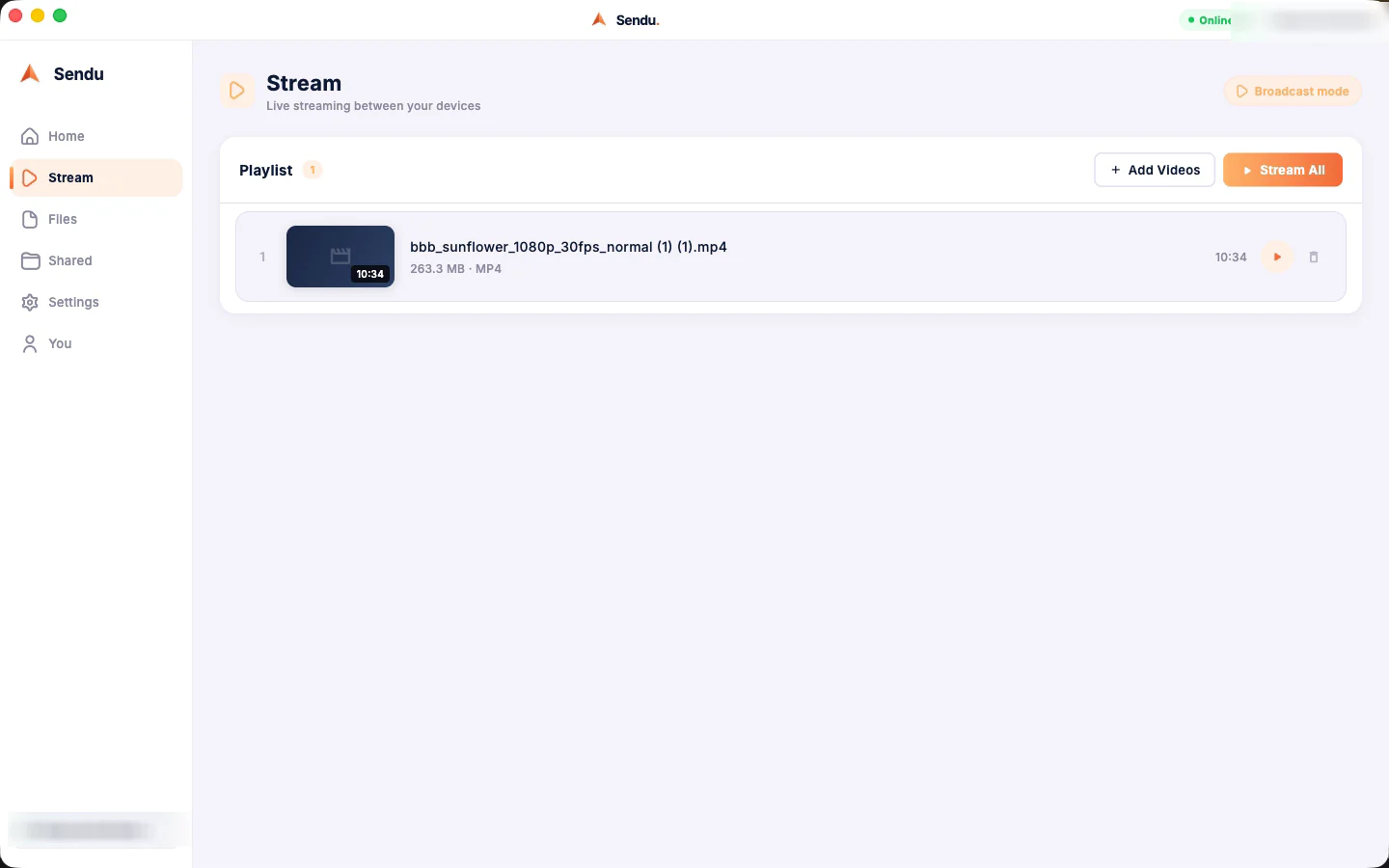
05 · Stream to TV
Your movie, on the big screen
Cast videos from your phone or computer to Sendu on Android TV. The video travels over your local network — no internet connection required.
- Install Sendu on your Android TV from the Play Store and open it.
- Connect your phone or computer to the TV like any other device.
- Pick a video and choose Stream instead of Send.
- Control playback from your device — pause, seek, stop.
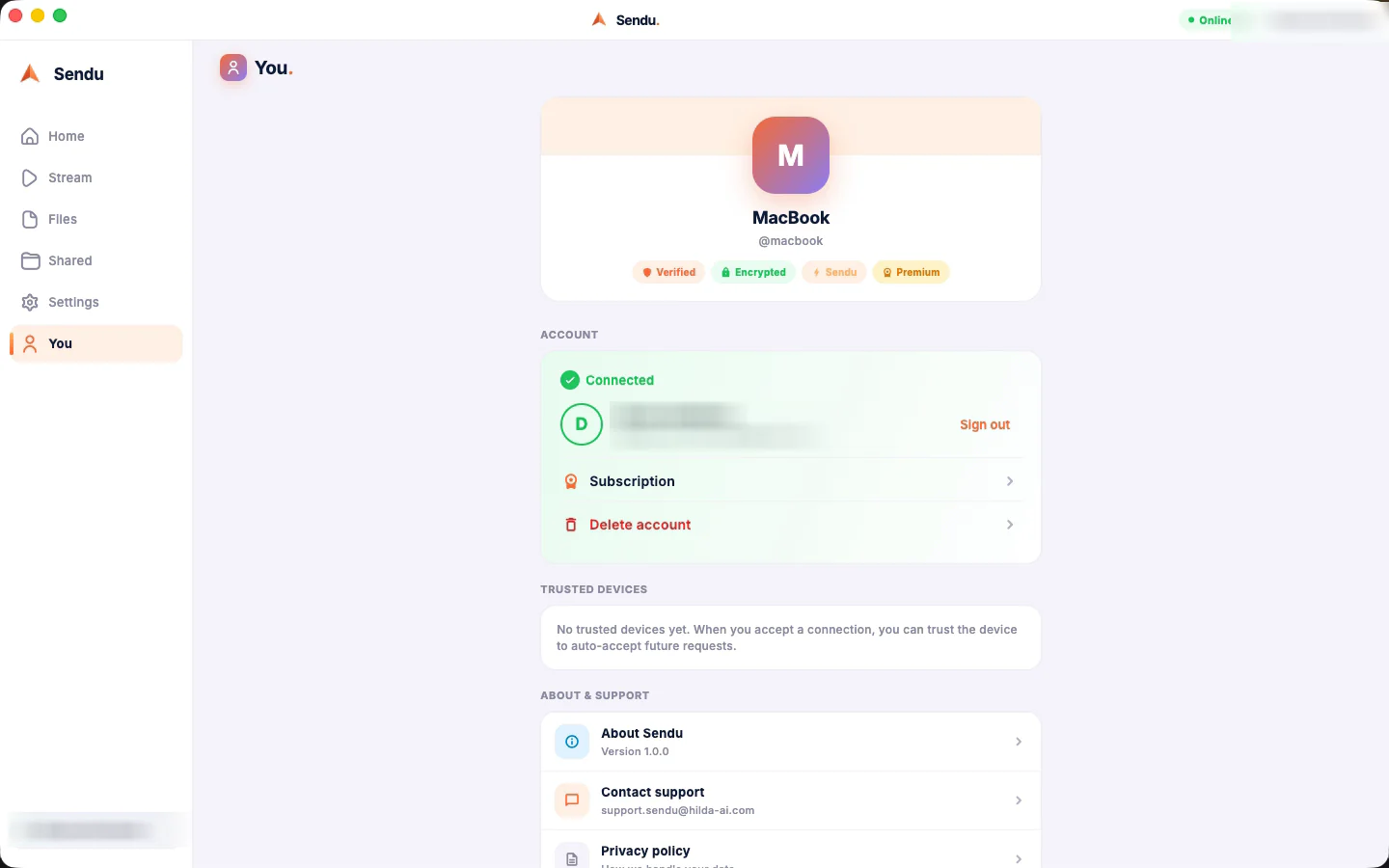
06 · Premium & purchases
Buy once, yours forever
Lifetime Premium unlocks streaming and shared folders — one purchase, no subscription. On iPhone and Mac you can buy without creating any account.
- Buy from the You tab — on iPhone and Mac it goes through the App Store, no account needed.
- Reinstalled? Tap Restore purchases in the You tab — Premium comes back instantly.
- Want it on all your devices? Sign in (optional) and Premium follows you across platforms.
Purchase problem? Email support.sendu@hilda-ai.com.
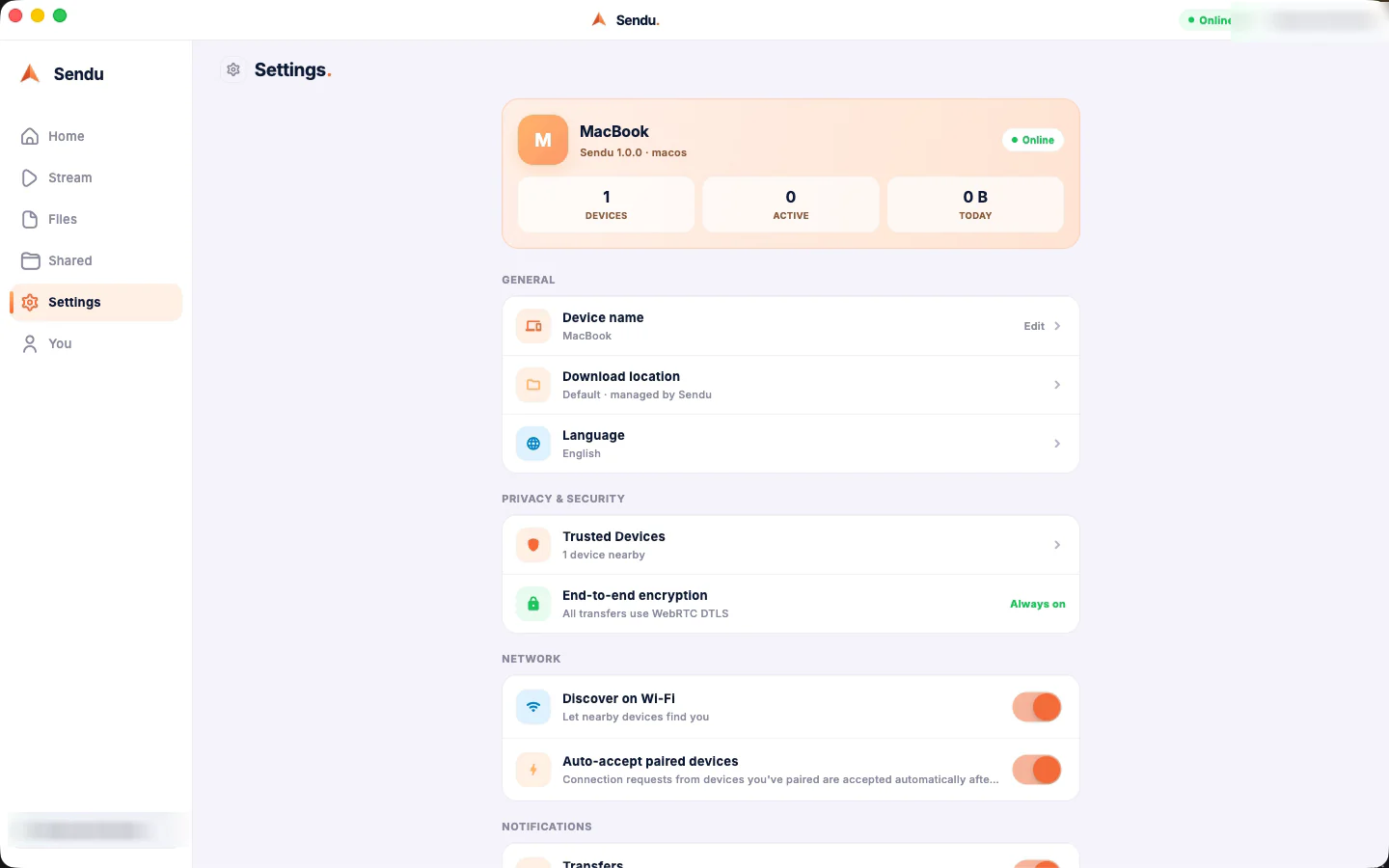
07 · Troubleshooting
Fix it in four checks
Nine times out of ten the network is the culprit. Run this checklist top to bottom — and if Sendu still misbehaves, we want to hear about it.
- Same Wi-Fi? Both devices must be on the same network.
- VPN off? VPNs hide devices from each other — turn them off on both ends.
- Try the QR scan from the desktop app — it connects directly when discovery fails.
- Restart the app on both devices, then email us your platform + what happened.
Still stuck? support.sendu@hilda-ai.com — we reply within 2 business days.
Quick answers
Do I need an account or an internet connection?
How do I send a file?
Is there a file size limit?
Where do received files go?
- Android: any file manager →
Download/Sendu - iPhone & iPad: Files app → On My iPhone → Sendu
- macOS: the folder you chose on first receive (Downloads is suggested)
- Windows & Linux:
Downloads/Sendu - Android TV: the storage volume you picked in Sendu's settings
How does streaming to my TV work?
What are shared folders, and can others change my files?
Are my transfers private?
What does Premium include?
I reinstalled — how do I get Premium back?
Does Premium work on all my devices?
My devices can't see each other — what should I check?
- Same Wi-Fi? Both devices must be on the same network — guest networks and mobile data don't count.
- VPN off? VPNs hide devices from each other; turn them off on both ends.
- Try the QR scan from the desktop app — it connects directly when discovery fails.
- Restart the app on both devices.
Talk to a human.
Tell us your platform (Android, iPhone, Android TV, macOS, Linux or Windows) and what happened. We reply within 2 business days.